
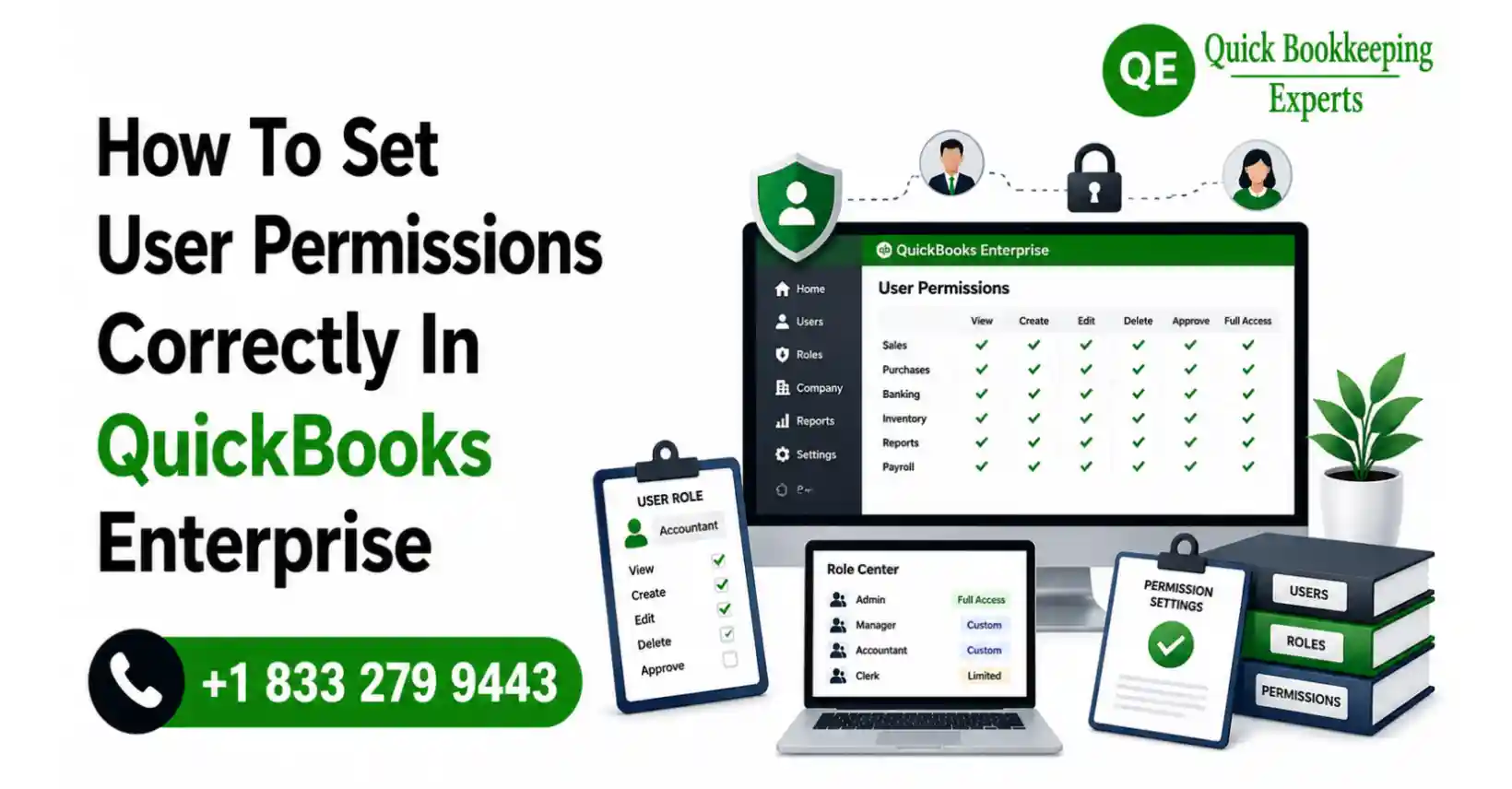
In any business managing financial data is one of the crucial yet most sensitive responsibility. Whatever may be your business, giving employees unrestricted access to the accounting system can cause to lots of issues. The costly mistakes could be relate to fraud risks and operational confusions. This is the reason understanding QuickBooks user roles and configuring permissions accurately is the most important aspect for every organization who is using QuickBooks.
It is a general thinking of assigning full access will be the best option for business owners, however, poorly configured permissions here can lead to number of issues. It can lead to payroll exposure, accidental deletions, inventory discrepancies along with reporting errors. Therefore a structure enterprise permissions setup is required for the accounting sections. It can help businesses to improve accountability, control access, and protect financial records without disrupting or slowing down daily operations.
This blog here is introducing a guide to explain how to configure correctly QuickBooks Enterprise user permissions. So that you can avoid mistakes and build an accurate permission structure that support both security and productivity.
Table of Contents
- Why User Permissions Matter in QuickBooks Enterprise
- Understanding QuickBooks User Roles and Permissions
- Common Risks of Incorrect Permission Settings
- How to Add a User in QuickBooks Desktop
- How to Set User Permissions Correctly in QuickBooks Enterprise Windows
- Recommended Permission Settings by Employee Role
- Real Business Case Scenario
- Common Mistakes Businesses Make
- Best Practices for Long-Term Security
- How Quick Bookkeeping Expert Helps Businesses
- FAQs
- Wrap Up
Why User Permissions Matter in QuickBooks Enterprise
Increasing business demands multiple employees access to accounting data and it is a general concept. As the business is growing so is its employees, departments etc. Sales team needs invoicing access, warehouse staff needs inventory update and accountants need increased capabilities on reporting and reconciliation.
Before QuickBooks desktop user permissions are not configured, employees may:
- Access confidential payroll information
- Modify or delete transactions accidentally
- Change inventory quantities incorrectly
- View sensitive banking data
- Inaccurate reports generation
Therefore a well-designed permission structure is most needed aspect, so that each employee is enabled to access only what they need to perform their tasks.
For instance:
- A sales representative should create invoices but not edit payroll.
- A warehouse manager should update stock but not access bank reconciliations.
- A junior accountant enter bills without deleting transactions.
Here QuickBooks user roles and permissions Desktop turn critical.
Understanding QuickBooks User Roles and Permissions
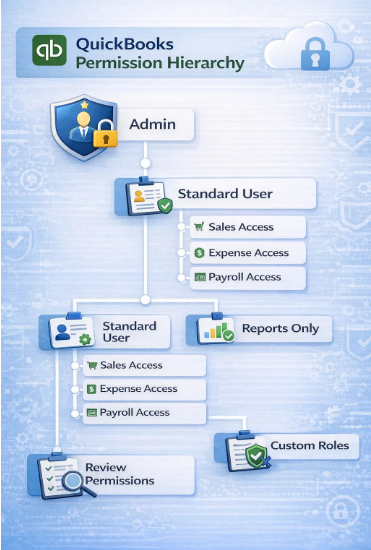
Administrators with the help of QuickBooks Enterprise can create a tailored access levels for their employees. So that everyone does not need full access, only receives their role-based permissions.
Here are some common used QuickBooks user roles:
Role | Typical Access |
Sales Representative | Estimates, Invoices, customer payments |
Accounts Payable Clerk | Bills, Vendor payments |
Payroll Manager | Payroll processing and Employee records |
Inventory Manager | Inventory adjustments and Stock reports |
External Accountant | Reports, Reconciliation, Financial review |
Administrator | Full system control |
QuickBooks Enterprise offers highly granular controls. It depends on administrator to decide what users can:
- View transactions
- Create records
- Modify existing entries
- Delete data
- Access reports
- Use sensitive financial modules
This QuickBooks Enterprise user permissions flexibility is very much useful for those companies who has multiple departments.
Source: QuickBooks
Common Risks of Incorrect Permission Settings
When problem arises, than only businesses notices the impact of poor permission management, or else they ignores.
- Payroll Confidentiality Breaches
Giving general accounting staff access to payroll records is the first common mistake. Which later lead to salary, bonuses, and tax information explosion to unauthorized employees.
- Inventory Problems
An Improper enterprise permissions setup can easily enable warehouse employees to edit data cost and inventory valuation. As a result an inaccurate profit margins will display.
- Accidental Deletion of Transactions
The newbies or junior staff with excessive permissions can remove bills, invoices, or payments unknowingly. Later it create reconciliation issues.
- Fraud Risks
If QuickBooks roles and permissions are not restricted or controlled, then unauthorized employees can tamper vendor records or payment details.
- Audit Challenges
Weak user restrictions in businesses often face challenges during audits because transaction accountability was not clear.
How to Add a User in QuickBooks Desktop
Administrators need to set user accounts at priority level before implementing configuring permissions.
Example of adding users in QuickBooks Online and Desktop from QuickBooks sources:
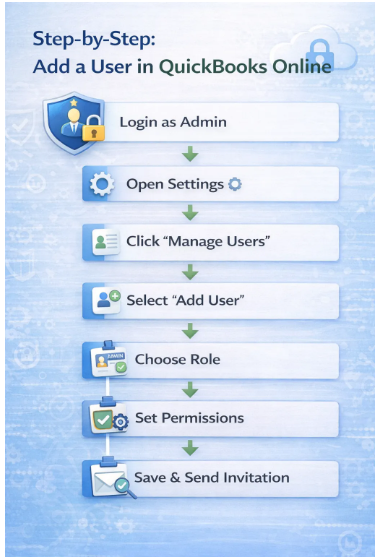
Steps to Add a New User
Step 1: Keep name Admin after opening company file.
Log in at the QuickBooks Admin account as single-user-mode
Step 2: Enter into Company Settings
- Company
- Set Up Users and Passwords
- Set Up Users
Step 3: Include User
Click “Add User” and create:
- Username
- Password
- Security credentials
Step 4: Allocate Role
Either select an existing role or go for a customized permission structure creation.
Step 5: Evaluate Restrictions
Carefully scrutinize the related areas for the employee to access.
These are the essential process you need to learn on how to add new user in QuickBooks Enterprise securely.
Set User Permissions Correctly in QuickBooks Enterprise Windows
A strong permissions structure starts with understanding job responsibilities.
I.Identify Employee Responsibilities
Do not assign permissions based on job titles alone. Instead, focus on actual daily tasks.
For Instance
- Does the employee only create invoices?
- Do they need access to bank reconciliation?
- Should they modify historical transactions?
This reduces unnecessary exposure.
II.Use Role-Based Access
Instead of configuring permissions individually every time, create standardized user roles.
Examples:
Customer Management Role
Can:
- Create invoices
- Receive payments
- View customer balances
Cannot:
- Access payroll
- Delete invoices
- View bank accounts
III.Inventory Role
Can:
- Update stock quantities
- View item reports
Cannot:
- Modify financial reports
- Access payroll
This method simplifies long-term management of QuickBooks user permissions list structures.
IV.Restrict Sensitive Areas
High-risk sections should remain limited to trusted users only.
These include:
- Payroll
- Banking
- Tax information
- Financial reports
- User management settings
Many businesses overlook this step while learning how to restrict QuickBooks users effectively.
V.Limit Deletion Rights
One of the smartest security practices is restricting deletion permissions.
Allowing employees to edit transactions may be necessary, but deletion rights should remain highly restricted.
This feature will help to maximize accountability and minimizes accidental data loss.
VI.Review Permissions Regularly
Businesses evolve constantly. Employees change roles, departments, or responsibilities.
Review all QuickBooks desktop users and restrictions every quarter to ensure permissions still align with actual duties.
Recommended Permission Settings by Employee Role
I.For Sales Teams
Recommended access:
- Estimates
- Sales orders
- Invoices
- Customer payment
Restricted access:
- Payroll
- Vendor bills
- Banking
- For Inventory Staff
Recommended access:
- Inventory adjustments
- Item lists
- Purchase orders
Restricted access:
- Financial statements
- Payroll
- Tax settings
III. For Bookkeepers
Recommended access:
- Bills
- Vendor payments
- Reconciliation
- Financial reporting
Restricted access:
- User management
- Payroll administration
- For Business Owners
Owners should maintain:
- Full admin rights
- User management access
- Audit trail monitoring
Real Business Case Scenario
One mid-sized wholesale distributor open office with 28 employees in Texas. Over six months, the company experienced recurring inventory discrepancies worth nearly $18,000.
At Beginning, management assumed the issue was caused by purchasing errors. But after reviewing their QuickBooks user roles and permissions, they discovered warehouse employees had unrestricted editing access on inventory.
Problems included:
- Incorrect item cost edits
- Unauthorized inventory adjustments
- Purchase transactions accidental deletion
Now the company restructured its QuickBooks Enterprise user permissions access design:
Changes Implemented
- Warehouse staff received quantity-only access
- Financial editing permissions were restricted
- Deletion rights were removed for non-admin users
- Audit trail reviews became mandatory weekly
Results After 90 Days of implementation
- Inventory discrepancies reduced to 82%
- Month-end reconciliation time lessened to 4 hours from 11 hours
- Improved financial reporting accuracy
This is the perfect display of how proper QuickBooks roles and permissions can directly impacted upon operational efficiency.
Common Mistakes Businesses Make
- Giving Everyone Admin Access: It is one of the most common yet dangerous mistakes.
- Ignoring Audit Trails: Many businesses don’t review the audit tracking on regular basis, which are included within QuickBooks Enterprise features.
- No Permissions Update: Found the former employees name in the list even after they have changed their responsibilities.
- Over complicating User Roles: When many custom permissions are entered it can create confusion. Therefore it is necessary to keep roles structured and manageable.
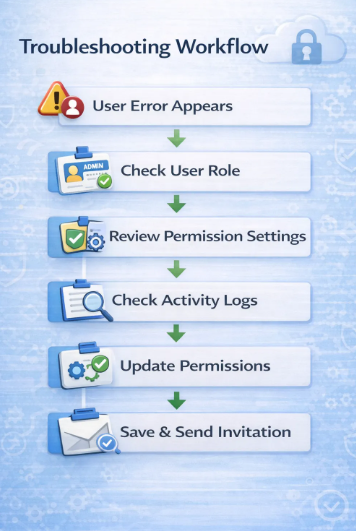
Troubleshooting common user access issues in QuickBooks:
Best Practices for Long-Term Security
Maintaining secure and efficient QuickBooks online access permissions and desktop controls demands:
- Using strong passwords for every user
- Require unique login for each employee
- Avoid shared accounts
- Review permissions quarterly
- Remove inactive users immediately
- Restrict deletion rights wherever possible
- Train employees on proper QuickBooks usage
Businesses using both desktop and cloud-connected environments should also review user permissions in QuickBooks online integrations to avoid synchronization security gaps.
How Quick Bookkeeping Expert Helps Businesses
Quick Bookkeeping Expert professional team provides businesses a secure configuration and efficient QuickBooks customized environments to meet their operational needs. When businesses are looking for Set Up Users and roles in QuickBooks Desktop to advance enterprise permissions setup, the team assist companies by improving workflow, reducing accounting risks, and optimizing system security.
Their support includes:
- User access configuration
- Role-based permission setup
- Multi-user environment troubleshooting
- Audit trail reviews
- QuickBooks security optimization
- Employee access restructuring
For businesses struggling with permission errors or operational confusion, professional guidance can prevent long-term accounting complications.
Know More
- Reach near official QuickBooks Enterprise support number.
- Tips to setup QuickBooks Enterprise for small businesses.
FAQs
How to define QuickBooks user roles?
The QuickBooks user roles are predefined. They are set with customized permission groups that control what employees can access inside QuickBooks Enterprise.
How to change user permissions in QuickBooks Desktop?
- Enter into Company
- Then Set Up Users and Passwords
- Go to Set Up Users
Select the user and edit their assigned role or access permissions.
This process helps businesses understand How to change user permissions in QuickBooks Desktop safely.
How can one restrict employees from viewing payroll?
QuickBooks Enterprise allows administrators to completely restrict payroll visibility for unauthorized users. You can restrict your employees with official guidance from QuickBooks enterprise support chat.
How to find the safest permission setup for small businesses?
The safest approach here is the role-based access where employees only receive permissions necessary for their specific responsibilities. To set up for your business you can learn from experts by connecting QuickBooks enterprise solutions support phone number.
How often should user permissions be reviewed?
It is recommended by QuickBooks professionals to review permissions every 3–6 months or immediately after staffing changes.
How can QuickBooks Enterprise track user activity?
QuickBooks Enterprise to track user activities include an audit trail that records transaction changes, edits, and deletions by user.
Wrap Up
It is necessary for businesses to learn How to Set User Permissions Correctly in QuickBooks Enterprise, but not just as mandatory software administration. it is essential to protect your business finances by reducing operational mistakes, and improving accountability.
A smart enterprise permissions setup ensures employees to access the tools they truly need. So that the sensitive financial information will be saved from accidental or unauthorized changes. Because it is noticed in businesses that who has invested their time in configuring proper QuickBooks user roles and permissions, often experience fewer accounting errors, faster audits, improved inventory accuracy with stronger financial control.
What ever may be the size of your business, either small accounting team or a large multi-department organization. Reviewing your QuickBooks Enterprise user permissions regularly not only save significant time, but also money, and operational stress in the long run.